
Your Attractive Heading
How to add movies to Radarr and TV shows to Sonarr
Automate your content acquisition.
6
Feed your film hole
Build your movie and TV series collection
Time to get the content.
So far, you’ve set up everything you need to download and manage your movie and TV show collection. Next, you’ll grab some movies and TV shows, and then install Plex to consume your content from any device.
Table of Contents:
How to add a movie to download using Radarr.
Open your Radarr browser tab or go to http://localhost:7878/. Click “Movies”, then “Add New”.
Type the name of the movie you want to download. As you start typing, Radarr will show search results. When you see your movie, click the title, and a modal window will pop up.
Ensure the following:
- “Root Folder” should point to the Movies folder on your hard drive
- “Monitor”: choose “Movie Only”
- “Minimum Availability”: choose “Released”
- “Quality Profile”: Choose the highest level of quality you want for this movie.
Make sure to check the box “Start search for missing movie”, and click “Add movie”.
Radarr will start searching your indexer(s), and if it finds a file, you will see a little number “1” show up next to the “Activity” tab in the sidebar. Click that, or switch over to your SABnzbd tab to watch the download progress.
How to manually search for a movie in Radarr.
If Radarr’s automatic search doesn’t find a suitable download, you can search manually and pick a file from the search results.
Click the “Movies” tab on top of sidebar. To see only movies that haven’t been found, click the “Filter” button on the top right of the page and choose “Missing”.
Click the title of the movie you want to find. Click the “Search” tab in the section at the bottom.
If no results were found, you might look into getting another indexer. Check out our recommended list of indexers. If results are found, they will each have a down-arrow icon to download the movie. Check the “Size” and “Quality” columns in the results to make sure it is acceptable.
Click the download button, and go to the “Activity” tab in the sidebar, or switch to your SABnzbd tab to watch the download progress.
How to add a TV series to download using Sonarr.
Open your Sonarr browser tab or go to http://localhost:8989/. Click “Series”, then “Add New”.
Type the name of the TV series you want to download. As you start typing, Sonarr will show search results. When you see your show, click the title, and a modal window will pop up to confirm.
Ensure the following:
- “Root Folder” should point to the TV Shows folder on your hard drive
- “Monitor”: choose “All Episodes” to add the entire series, or choose another option
- “Quality Profile”: Choose the highest level of quality you want for this movie.
- “Series Type”: Choose Standard, Anime, or Daily
- Check “Season Folder”
- Check “Start search for missing episodes”
Finall, click the big green “Add [TV Show Name]” button.
Sonarr will start searching your indexer(s), and if it finds the series, you will see a little number “1” show up next to the “Activity” tab in the sidebar. Click that, or switch over to your SABnzbd tab to watch the download progress.
How to manually search for a TV series in Sonarr.
If Sonarr’s automatic search doesn’t find a suitable match, you can search interactively and choose from the search results.
Click the “Series” tab on top of sidebar. To see only shows that are missing episodes, click the “Filter” button on the top right of the page and choose “Missing Episodes”.
Click the title of the series you want to find episodes. Click the desired Season in the section at the bottom.
You can search for entire seasons, or individual episodes. To search for an entire season, click the “user” icon on the right side of the season title bar. To search for an individual episode, click the “user” icon next to the episode. Here’s a screenshot:
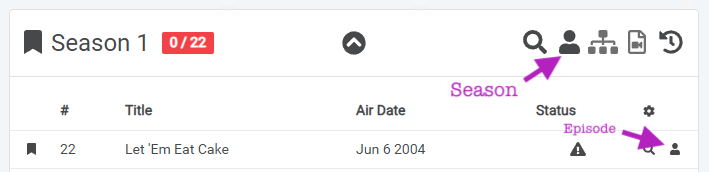
When searching for an entire season, you might choose to download a “season pack”, or all episodes individually. Usually, season packs include files of similar quality for consistent playback. To search for only season packs, click the Filter button on the top right of the search window and choose “Season Pack”.
If no results are found, you might look into getting another indexer. Check out our recommended list of indexers. If results are found, they will each have a down-arrow icon to download the series or episode. Check the “Size” and “Quality” columns in the results to make sure it is acceptable.
Click the download button, and go to the “Activity” tab in the sidebar, or switch to your SABnzbd tab to watch the download progress.